

Update: 13 May 2019
At the time of publication we were not fully aware of the ramifications of discussions and further post publication discussions, in the WCAG working group, that have led to the requirements for conforming to this success criterion being more clearly defined:
- In HTML content the use of the
typeattribute is not sufficient to conform to the criterion, theautocompleteattribute (with an appropriate token) must be used.typeattribute alone = failautocompleteattribute with appropriate token(s) = pass (use in conjunction with the appropriatetypeattribute = pass + best practice)
- For native iOS and Android applications there is currently no programmatic method that is specific enough to conform to this criterion, so the criterion is currently considered not applicable.
- Use of the appropriate type property = best practice
Note: Refer to the following WCAG working group issue for details: Applicability/testability of 1.3.5 for native apps
Note: We strongly encourage the use of the appropriate type property in both HTML and native applications as this provides usability and accessibility benefits to a wide range of users.
How Do You Test S.C. 1.3.5 on Mobile?
Here at TPGi we have been asking this question and been working hard to fully understand this Success Criterion and provide a feasible solution. This has of course led to several other great questions to consider when coming up with a solution. How do you test a form field’s purpose on a mobile application? What if you don’t have access to the code, how do you know if the input’s purpose has been properly set? What are some techniques to suggest to clients to fix this?
Luckily for all you readers out there, I have jumped head first into this task and want to give you all the knowledge that I possess. I too, along with several bright minded co-workers, worked together to figure out not only how to know if an input field’s purpose has been set, but also how we can help our clients with a solution on fixing it.
What is Success Criterion 1.3.5?
In a previous blog post, we introduced the Web Content Accessibility Guidelines (WCAG) 2.1 and briefly talked about each criterion. To summarize Success Criterion 1.3.5, an input field that is collecting information about the user needs to programmatically declare the specific kind of data expected and present the purpose to users in various methods. There are several methods in which the purpose can be presented, such as an icon symbolizing a field (e.g. phone icon symbolizing a phone number) or by auto-suggesting pre-saved values that a user has saved to their browser. Applying the proper techniques will help users with cognitive, learning, and mobility impairments who may have a difficult time identifying, typing, and remembering the form field information.
How Do You Test on Mobile Applications?
Testing the input purpose on native mobile applications can be done in a few steps. The steps below apply to both Android and iOS platforms.
Testing Steps:
- Open the application and ensure that the virtual keyboard is enabled (built-in keyboard for the phone).
- Place your cursor inside the input field and ensure that the keyboard matches the appropriate input type.
For example:- Email Address — For both iOS and Android the keyboard would change to have the “@” key present to easily type in an email address. For Android there will be a “.com” key as well.
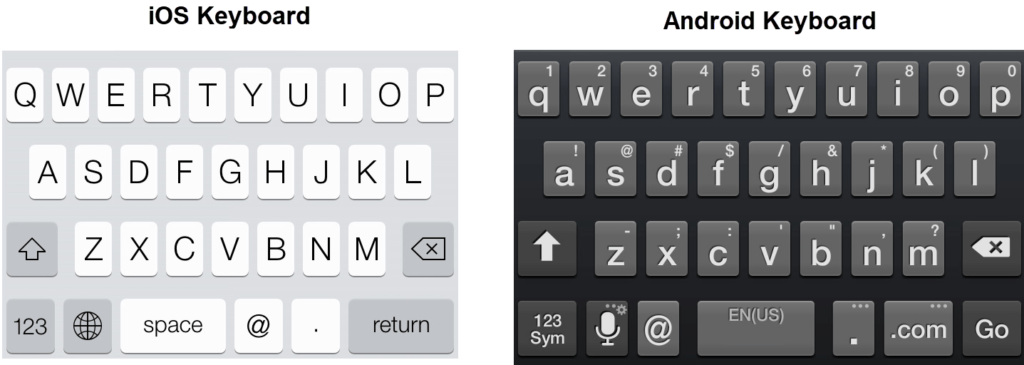
Figure 1: The iOS keyboard shows a standard keyboard on a mobile device that includes the “@” symbol. The Android keyboard will show similar keys, but will also include a “.com” key. - Phone Numbers — For both iOS and Android the keyboard would change to have only numbers 0 through 9, the */# characters, and minor punctuation keys.
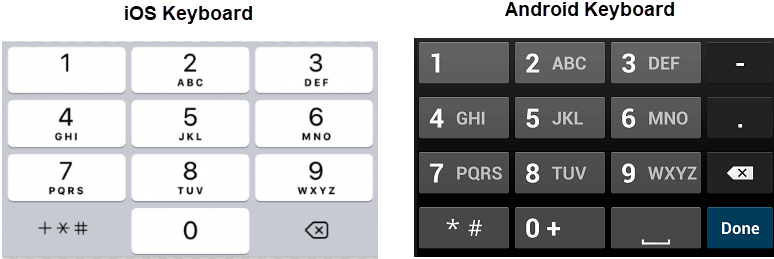
Figure 2: The iOS and Android keyboard on a mobile device shows only numeric keys with additional character keys “*” and “#”.
- Email Address — For both iOS and Android the keyboard would change to have the “@” key present to easily type in an email address. For Android there will be a “.com” key as well.
What Techniques are Available for Mobile Application Developers?
Defining the input purpose within a native mobile application is a bit more limited compared to an HTML webpage. The techniques are similar for both iOS and Android; however, they each have different values depending on the platform being used.
iOS Platform
When using the standard UITextField and UITextView (with isEditable property set to true) classes, they will automatically support the UITextInputTraits protocol. Use the UIKeyboardType property to specify the input purpose. Then select one of the UIKeyboardType values to specify the correct keyboard to use for the input field.
Android Platform
Declare the input method for <EditText> elements by adding the android:inputType attribute. Then select one of the Android Input Method Types to determine the correct keyboard to use for the input field. Learn more about the specifications of the InputType attribute.
Upcoming Enhancements
Technology is constantly changing and enhancements are rapidly being made to allow information to be more accessible. With every new update to the Android and iOS operating systems, more functionality is available to assistive technology. Both Android and iOS have other options available to provide a more precise input purpose; however, assistive technology cannot properly interact with these other options at this time. Once these other options are supported and tested, be sure to check out an updated blog post on the input purpose on mobile applications.